How to Recover Deleted Photos from Canon Cameras
Disclaimer: “This post is sponsored and not my work, consider it a guest photographer stepping into my darkroom to help keep the lights on!”
You have mistakenly deleted important photos stored on the camera? Don't worry!
In most cases, after the camera deletes a file, it doesn't really erase the photo instantly. The memory card is just going to mark that place as "blank" for new data only.
Just to make the situation better, you must take the card out and stop using it. After that, you only have to choose a recovery method.
This guide will help you understand the process of restoring accidentally deleted images from your Canon camera. Also, you will learn the steps to take immediately after the photo is gone, the possible ways for picture restoration based on your backup, and finally the safe recovery software as the last resort of this photo salvage method.
Can You Recover Deleted Photos from a Canon Camera?
Yes. Recovering deleted photos on a Canon camera is typically possible, particularly if the SD card has not been overwritten.
To successfully recover a deleted photo:
Stop taking photos with the camera so you don't write over the deleted image file.
Ensure the camera's SD card is recognised by a computer and displays the normal capacity.
Do not attempt recovery if the card is physically damaged or has been formatted more than once.
The recovery process is the same for many Canon models, including the EOS R5/R6, 5D Mark IV, EOS 80D/90D, and PowerShot G7 X Mark III.
Common Reasons for Photo Loss on Canon Cameras
So, what has happened to the photos? Photo loss doesn't always stem from pressing the wrong key. A Canon memory card may deny you access to your photos for several reasons:
An accidental tap on Delete: One unintentional press can erase a photo or a batch of photos from the camera.
Formatting the card: The "Format" selection erases its file directory on the card, thus causing the photos to seem missing.
Computer viruses or malware: If your computer or storage medium is carrying the virus or malware, it may conceal, change, or destroy your photos.
Switching memory cards on various devices: Changing the use pattern of one SD card in and out of a camera, phone, and computer sometimes creates file system or metadata problems.
Physical damage: If a card is cracked, bent, water-damaged, or physically damaged in any way, then you may not be able to recover the files by yourself. In that case, you need to refer for professional data recovery assistance.
Memory card errors: File corruption might show "Card Error" in the camera or make the card appear as RAW on a computer.
Interrupted transfers: Removing the card or disconnecting the camera while transferring the pictures might result in some files being damaged.
What to Do Immediately After Losing Photos (Pro Tips)
Did you just find out that your Canon photos have disappeared? Hold on to your clicks.
A couple of misplaced actions can kill your efforts to recover your photos.
Stop using the SD card: Do not take new photos or videos or transfer any files to it. Whenever new data is saved, deleted files get overwritten.
Remove the card from the camera carefully: Eject the SD card from the camera and refrain from inserting it into and removing it from the camera repeatedly.
Use an SD card reader: Connect your SD card to your PC using an SD card reader instead of the Canon camera via USB. This can help the data recovery software gain access to the structure of your card's file system.
Do not repair or format the card: If prompted to "Repair" or "Format" your card, click Cancel. The process of repairing or formatting the card can complicate data recovery.
Method 1. Recover Deleted Canon Photos with EaseUS Data Recovery Wizard
If you're ever in the situation where you find all your Canon photos are gone – perhaps you deleted them, formatted the card, or maybe they're just unreadable – EaseUS Data Recovery Wizard will help.
It works with all your camera storage devices, such as SD, microSD, CF, and CFexpress cards, and it can recover data from formatted cards too.
This Canon-compatible data recovery tool works with multiple photo and video formats such as CR2, CR3, JPEG, HEIF, MP4, and MOV. It has two recovery modes, Quick Scan and Deep Scan, that allow you to recover your missing photos/videos. You can also preview photos you've recovered to ensure you recover exactly what you're looking for. EaseUS Data Recovery Wizard is usable on both Windows and Mac.
Step 1. Scan the memory card
Connect a Canon memory card reader to your computer. Then choose the Canon SD card in EaseUS Data Recovery Wizard.
After that, choose the "Search for Lost Data" option and hit Enter.
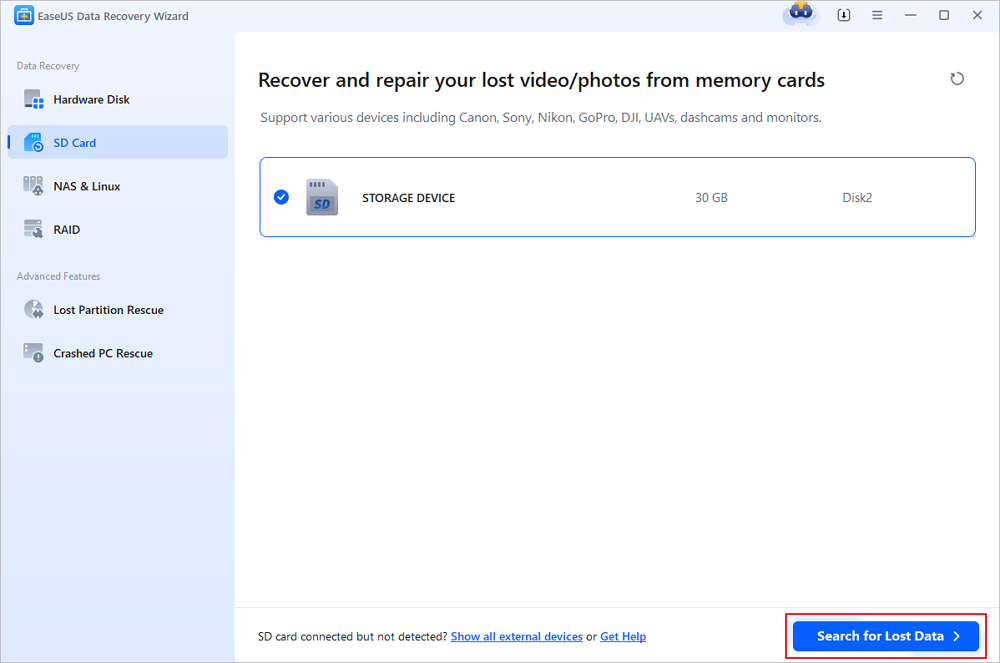
search for lost data
Step 2. Locate the deleted photos
When the initial scan ends, the left sidebar lists all possible file types and directories.

locate the deleted photos
Step 3. Preview and recover
Preview the recovered files, click "Recover," and store the recovered pictures on another storage drive (e.g., an external HDD).
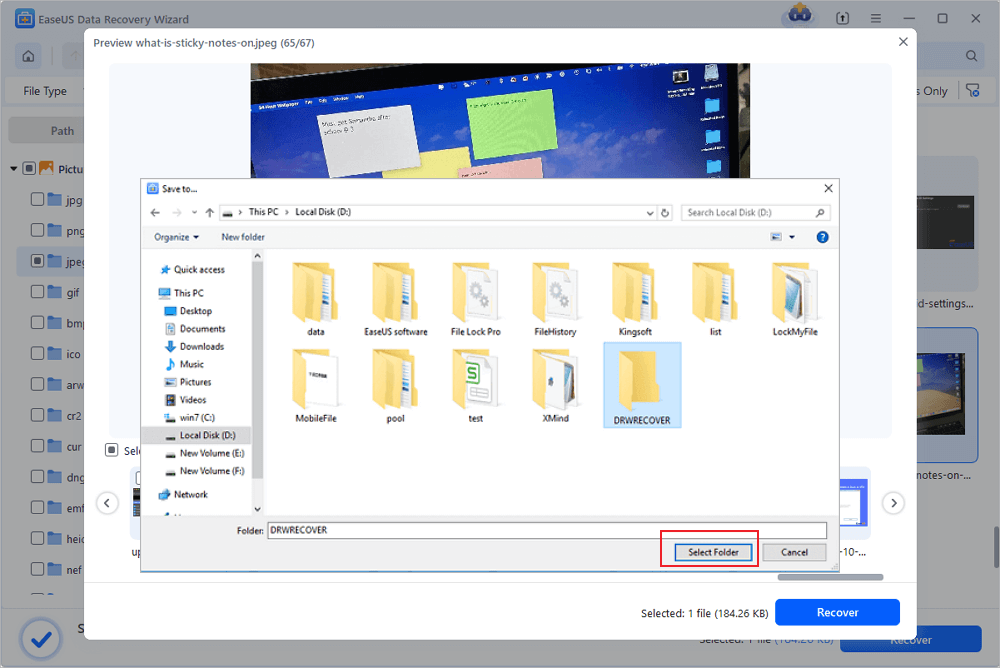
preview and recover
Method 2. Restore Canon Photos from Backups
Don't dive into complex methods first; see if you have backups!
Canon photos that were backed up to the cloud or another destination will probably be much simpler to recover.
Check cloud storage:
Use any of Google, Apple, Dropbox, or Adobe services to log in to your albums and check all the synced ones. Once you find the pictures that were lost, just download them.
How to recover: Go to the online storage, such as Google Drive > Trash, and click "Restore" to download or save them to the local device.

restore Canon image to device
Check image.canon:
If your camera supports Canon's automatic backup, you can verify your photos through the image.canon service by signing in to Canon. Image.canon can upload originals from compatible cameras and store them free for 30 days, before storing smaller copies for viewing and sharing thereafter.
How to recover: Sign in to image.canon and check if your missing images have been backed up there. You can then download the backed-up photographs.

check image.canon
Look at your local backups:
It may be that your Canon photos have copies on local external hard drives, NAS, and other storage.
How to recover: Plug the backup drive into your computer or access the NAS folder and get the pictures from there.
Windows File History recovery:
If the File History feature was turned ON when the photos were deleted, Windows might have an earlier version of the folder that you can recover.
How to recover: Navigate to Control Panel > System and Security > File History > Restore personal files. Choose the folder/images you want to restore and press the green Restore button.
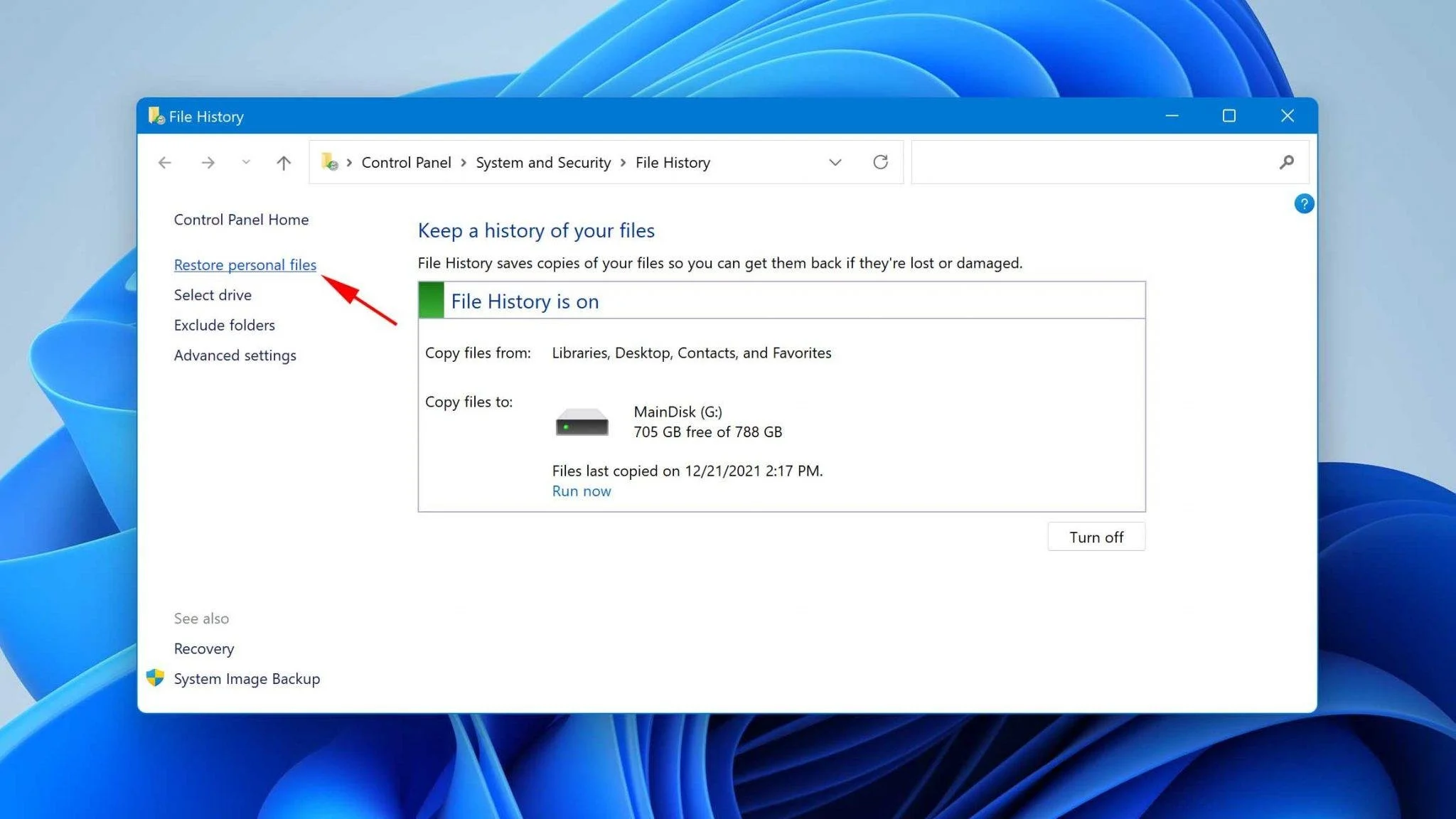
restore personal files
Check Recycle Bin or Trash:
If Canon photos are deleted after copying to a Windows PC, they might still be in the Recycle Bin. So, try recovery software only after you have checked the bin.
How to recover it: Open the Recycle Bin/Trash, locate the photographs, select them, and right-click Restore/Put Back.
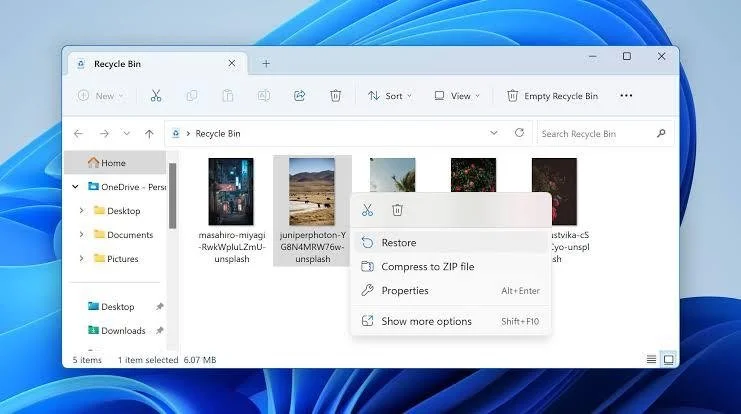
restore canon images from recycle bin
Method 3. Show Hidden Photos Using CMD (Advanced)
Sometimes it may happen that a human did not even delete your Canon images; they were lost due to data corruption at the disk level caused by malware or other computer problems. To recover these files, you might use Windows Command Prompt.
Step 1. Connect the SD card
Insert the Canon SD card into your computer using a card reader. Open File Explorer > This PC and note the drive letter assigned to the card, such as E:.
Step 2. Open Command Prompt
Press Windows + R, type cmd, and press Enter to open Command Prompt.
Step 3. Enter the command
Type the following command, replacing X with your SD card's drive letter:
attrib -h -r -s /s /d X:\*.*
Then press Enter and wait for the command to finish.
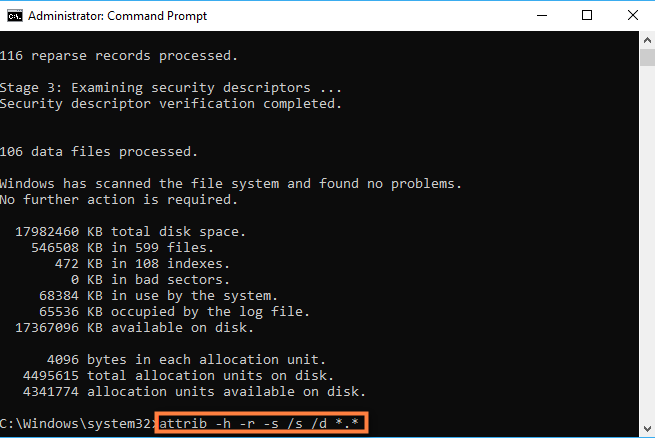
recover canon images via cmd
Step 4. Check your photos
Open the SD card in File Explorer and check whether your previously hidden photos are visible again.
Note: However, this method is valid only when the pictures are hidden and not actually deleted.
How to Prevent Photo Loss on Canon Cameras
The best photo recovery is the one that you won't actually need. Just by adopting a few habits you can dramatically lower the risk of Canon photos getting lost.
Offload photos from the card: Rather than treating the SD card as a long-lasting storage medium, you should move your photos to a computer or another storage.
Follow the 3-2-1 backup rule: Have 3 copies of your images, 2 on separate storage types and 1 in the cloud.
Select only high-quality SD cards: Since fake cards may show greater storage capacity, look at reputable sellers and brands.
Don't interrupt transfers: Never unplug the memory card from the camera with the camera powered on or during photo transfer.
Make your setup safe: Install firmware updates to your Canon camera when necessary, and handle photos only with a clean and virus-free computer.
FAQ
Can photos be recovered after formatting the SD card?
Pictures can be retrieved after quick formatting if the images have not been covered by new files. Stop using the card at once and check it with a data recovery program like EaseUS Data Recovery Wizard which can scan a formatted SD card and enable you to preview recoverable photos before they are restored.
Can I recover photos from a damaged Canon SD card?
This totally depends on the type of damage. If you are using the physical card and the card is still detected by your computer, then EaseUS Data Recovery Wizard might scan the card and recover files it can access.
Why does my Canon say the memory card is write-protected?
With read-only cards, you can no longer make edits, delete, or even save files to the camera. For full-sized SD cards, look to the right of the card on one edge and find the small Lock tab. Move the tab over from the Lock position into the Unlock position. If the situation doesn't improve, do not format the card; instead, use EaseUS Data Recovery Wizard to scan for recoverable data from it.
Conclusion
It is hard to lose Canon photos after so much effort went into getting them, yet a quick response will save them. First of all, don't touch the SD card and begin the recovery process immediately to minimize the chance of photos getting lost.
Non-technical users are better served by EaseUS Data Recovery Wizard's simple interface that can scan the card, preview the photos to be recovered, and then recover them without many hassles.
After you've retrieved your precious ones, let the next one not be lost again. Regularly make copies of photos either on your computer, external drive, or cloud disk.