How to Recover Lost or Deleted Digital Photos
Disclaimer: “This post is sponsored and not my work, consider it a guest photographer stepping into my darkroom to help keep the lights on!”
If you’ve deleted important photos, stop using the card or drive where they were stored. Taking more pictures or saving new files could overwrite the data you want to recover.
An accidental deletion doesn’t always mean your pictures are gone for good. They may still be in the Recycle Bin, in a backup, or on the original storage device. This guide explains how to recover deleted digital photos, starting with a few quick checks before showing you how to use photo recovery software to scan a memory card or computer drive and save the pictures you find.
TL;DR.
Stop using the affected card or drive, then check the Recycle Bin and any backups. If no copy exists and the device works normally, use Disk Drill to scan it, preview the photos, and recover them to a different drive. Scanning and previews are free; recovery limits depend on the platform and license. For a physically damaged or unstable device, avoid DIY recovery and contact a qualified recovery service.
What to Do Before You Try to Recover Your Photos
Before you start, check the condition of the card or drive and prepare a separate place to save recovered files. A few precautions can keep a recoverable mistake from becoming permanent.
Don’t format the device, even if your computer asks you to. Cancel the prompt. Formatting won’t bring your photos back and can make recovery harder.
Avoid repair tools for now. Don’t run CHKDSK or accept a “Scan and fix” prompt before recovering your pictures. These tools can change the file system while trying to repair it.
Keep downloads and installations off the affected drive. If the photos were on a memory card, install the recovery program on your computer. If they were on your computer’s system drive, use another computer to scan that drive when possible.
Prepare a different physical storage device for the recovered photos. Another folder or partition on the same drive is not a safe destination.
If the device repeatedly disconnects, reports the wrong capacity, or shows signs of physical damage, don’t attempt DIY recovery. For irreplaceable photos, contact a qualified data recovery service before running any scans.
Check the Recycle Bin and Your Photo Backups
You may be able to restore deleted pictures without scanning the original device. Start with the location that matches where you kept your photos.
If you deleted them on a Windows PC:
Open the Recycle Bin on your desktop.
Look for the photos or the folder that contained them. Sort by Date Deleted to narrow the list.
Select the items, right-click, and choose Restore. Windows returns them to their original location.
Photos deleted directly on a camera won’t appear in your computer’s Recycle Bin. Files removed from an SD card may bypass it too, so an empty bin doesn’t tell you whether those pictures are recoverable.
If you used cloud storage: Sign in to the service’s website and check its trash or recently deleted folder. For OneDrive, open the Recycle Bin, select the photos, and click Restore. Microsoft’s instructions for restoring deleted OneDrive files explain this process.
If you previously imported or backed up the shoot: Check your import folder, external backup drive, and any second memory card used for in-camera backups. Open the files to confirm they are full-resolution originals rather than thumbnails or smaller exports.
If these checks turn up nothing, the next step is to scan the original card or drive with recovery software.
How to Recover Lost or Deleted Digital Photos with Software
If you haven’t found a copy, Disk Drill Photo Recovery is our recommended tool for scanning the original card or drive. It’s developed by CleverFiles, and we have firsthand experience using it. For this task, its combination of image format support, search filters, and previews makes it a practical choice for finding photos without sorting through every recovered file.
Disk Drill supports JPEGs and RAW formats such as Canon CR2 and CR3, Nikon NEF, and Sony ARW. You can narrow the results to pictures, preview individual shots, and select only the ones you need. That’s especially useful when a memory card contains photos from several shoots or you need to find the RAW originals among smaller JPEG copies.
Scanning and previewing are free. The Windows version lets you recover up to 100 MB for free; larger recoveries require a paid license. On Mac, ordinary recovery of deleted files generally requires a paid license. Check whether your photos preview correctly before purchasing.
The steps below use Disk Drill for Windows to recover deleted pictures from PC storage and external drives. They also explain how to recover deleted photos from memory card storage connected through a card reader.
Step 1: Connect the Card or Drive to Your Computer
For a camera memory card, turn off the camera, remove the card, and insert it into a compatible card reader connected to your PC. Use the reader rather than connecting the camera with a USB cable, since many cameras use a transfer mode that doesn’t give recovery software direct access to the card.
For an external hard drive or USB flash drive, connect it directly to the computer. If the photos were on an internal data drive that Windows already detects, leave it connected.
Step 2: Download and Install Disk Drill
Download the Windows installer from the official CleverFiles website, run it, and follow the installation prompts. If you’re recovering photos from a memory card or external drive, install Disk Drill on your PC’s system drive.
If the affected device is the system drive itself, don’t download or install anything onto it. Follow the separate-computer approach described above instead.
Open Disk Drill once installation is complete.
Step 3: Select the Storage Device and Start the Scan
Find the card or drive in Disk Drill’s device list. Check its model and capacity before selecting it, especially if several drives are connected.
Note: If the photos disappeared even though you didn’t delete anything or format the device, file system corruption may be involved. Before scanning, use Disk Drill’s Byte-to-byte Backup feature to create an image of the entire card or drive on another storage device with enough free space. Then attach the image in Disk Drill and scan that copy instead of the original.
Select the physical device rather than an individual partition if the partition is missing or damaged. Click Search for lost data to begin. If Disk Drill asks you to choose a scanning method, select Universal Scan for this photo recovery workflow.
Let the scan finish before deciding that a picture is missing. Results can appear while scanning is still in progress.
Selecting a memory card to scan for lost photos in Disk Drill.
Step 4: Filter the Results to Find Your Photos
Click Review found items, then select Pictures to narrow the results. If you know the format you need, search for its extension, such as .jpg, .cr3, or .nef.
Check the Deleted or lost and Reconstructed groups. Reconstructed files may have generic names because the software found their contents without the original folder information. Check Existing as well if your photos disappeared from view rather than being deleted.
Avoid relying only on filenames or dates. Those details may be missing even when the image itself is recoverable.
Step 5: Preview and Select the Pictures You Need
Click a photo to open its preview. Look for a complete image rather than a blank frame, missing sections, or visible corruption. Use the preview to identify shots whose original filenames are gone.
Check the boxes beside the pictures you want to recover. If you shot RAW+JPEG, select both versions when available so you preserve the editable original as well as the ready-to-view image.
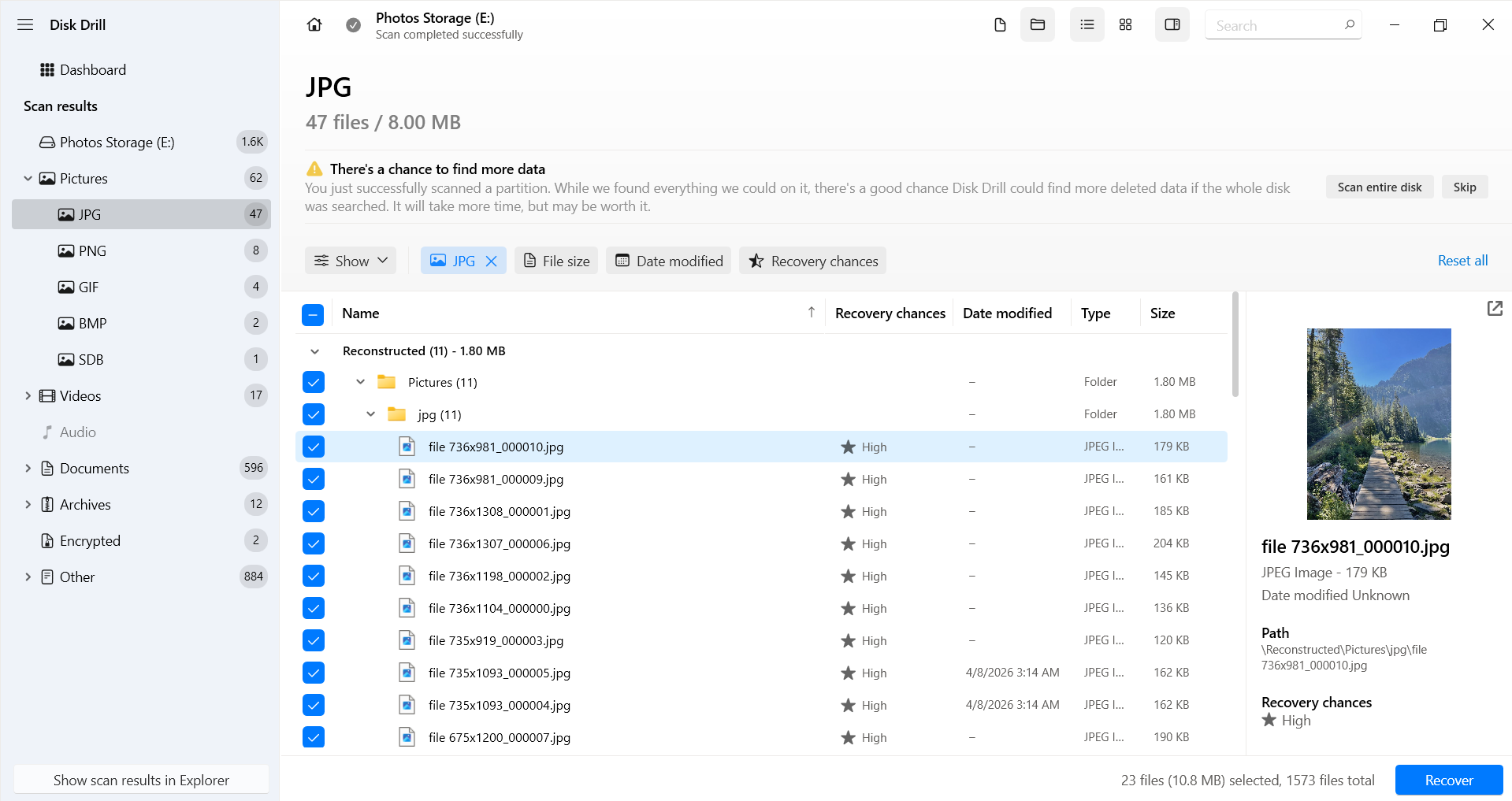
Previewing found photos and selecting the files to recover in Disk Drill.
Step 6: Recover the Photos to Another Drive
Click Recover and choose a destination on a different physical drive. For example, save photos from an SD card to your PC, or photos from an internal drive to an external one.
Once recovery finishes, open the destination folder and check the images in your usual photo viewer or editor. For RAW files, confirm that your editing software can open them at full resolution. Make a second copy of the recovered photos before reusing the original card or drive.
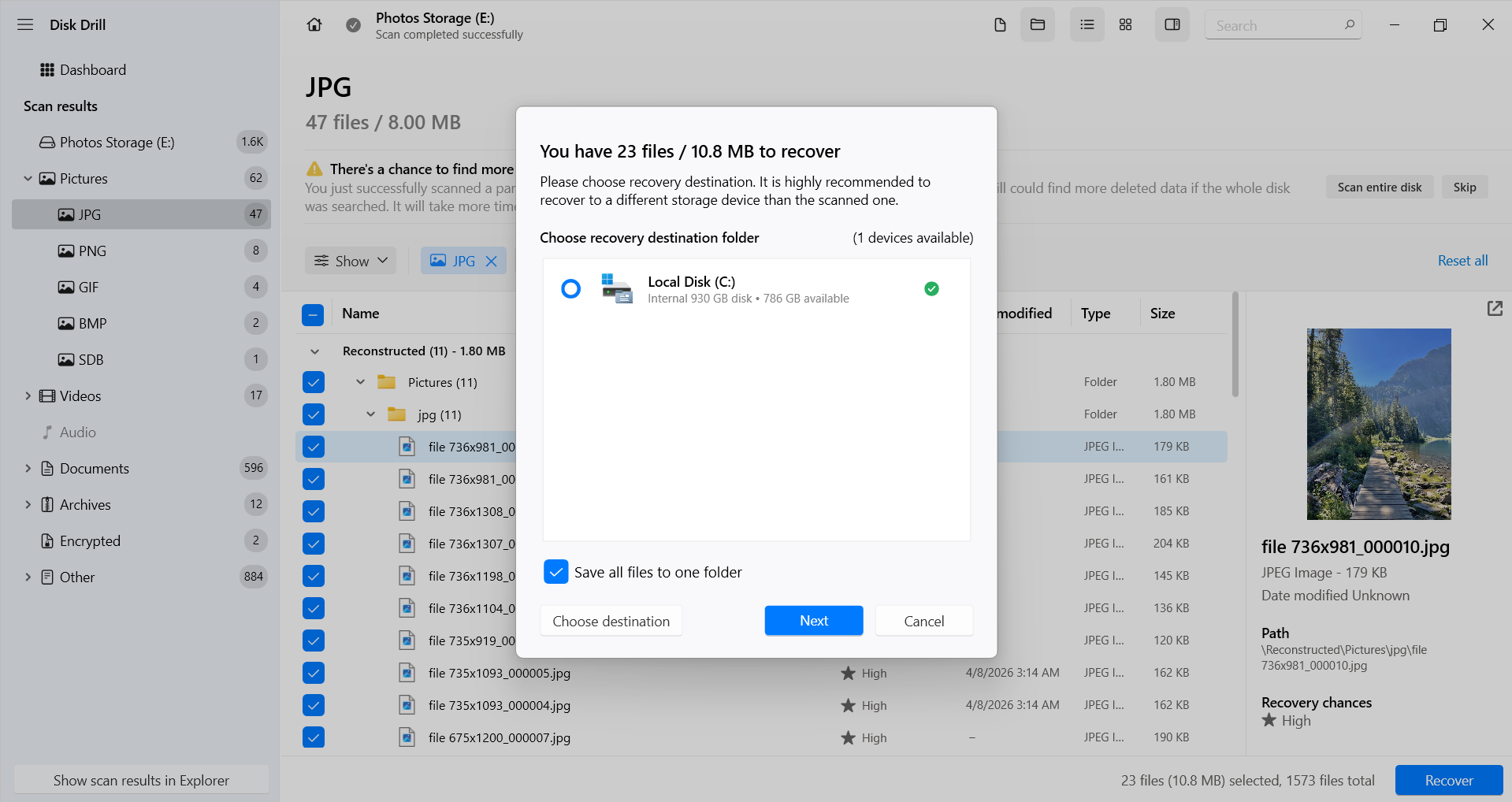
Choosing a folder on a different drive to save the recovered photos.
What to Do If Your Photos Cannot Be Recovered
An empty scan or a photo that won’t open doesn’t always have the same cause. Before trying again, check what the result tells you.
If the scan found no relevant photos: Confirm that you scanned the device where the originals were stored. A folder used for exported JPEGs may never have contained your RAW files. If you scanned only one partition, scan the physical device instead, provided it is working normally.
If recovered pictures won’t open: Try an application that supports that specific format, especially for RAW files from a newer camera. If a compatible editor still cannot open them, the files may be incomplete or damaged. Recovering the same files again won’t repair missing image data.
If the photos were lost from an SSD: Deleting files or formatting the drive can trigger TRIM, which allows the SSD to clear data it no longer needs. Once the underlying image data has been erased, recovery software cannot retrieve it.
If the card or drive was formatted: A quick format may leave the photo data recoverable, while a completed full format that overwrites the storage prevents software recovery. In-camera formatting varies: some Sony cameras issue an SD ERASE command with effects similar to TRIM, which can make the photos inaccessible to recovery software even if formatting takes only seconds. The outcome depends on the camera model and memory card.
For device-specific alternatives, the lost photo recovery guide covers additional recovery routes, including backups and options for phones. If your original files are no longer recoverable, check shared albums, email attachments, or copies sent to clients. These may be smaller than the originals, but they can still preserve an otherwise lost photograph.
Conclusion
The best way to get back deleted photos depends on whether a usable copy still exists. If the Recycle Bin and backups come up empty, our recommended next step is to scan a working card or drive with Disk Drill and inspect the previews before paying for recovery.
Once your pictures are safely recovered, keep the originals in at least two separate locations. For future shoots, verify that your imported photos open correctly and that a backup is complete before clearing the memory card.
FAQ
Can I recover permanently deleted photos after emptying the Recycle Bin?
Possibly. Emptying the Recycle Bin removes the normal restore option, but it doesn’t always erase the underlying image data immediately. A backup may still contain the originals, or recovery software may find them on the source drive. The word “permanently” describes how the files were deleted, not a guarantee that they are either recoverable or gone forever.
Does photo recovery reduce image quality?
No. If the original file is recovered intact, its resolution and quality stay the same. Recovery doesn’t compress the image or resize it. However, software may find a thumbnail or an exported copy alongside the original. Compare pixel dimensions and file sizes to make sure you’ve recovered the version you need. A partially recovered file may contain visible damage rather than simply looking less sharp.
Can I recover photos deleted months ago?
The time elapsed is less important than what happened to the storage device afterward. A memory card left unused since deletion may still contain recoverable images months later. A card used for several new shoots may have overwritten them much sooner. There is no fixed recovery window for every device, so the deletion date alone cannot tell you whether a scan will succeed.